XLSX / LL-0009
PlanningProduction Schedule Excel Template
Plan open work orders in Excel using due dates, routing hours, resource calendars, and exception checks before production release.
 Excel workbook and guide byLena Hart WhitcombProduction Workbook Editor
 QA editorial profileJonah Cray BellmontSpreadsheet QA Editor
This Excel workbook plans open work orders before production release. Each work order carries an entered ID, due date, and total routing hours. Resource calendar entries and planned schedule rows show how routing hours are placed across dates and resources.
The result is a multi-day resource schedule plus a rescheduling exception list. The download includes illustrative sample data that must be replaced. This workbook is an operational planning aid and does not release or dispatch work orders.
Workflow boundary
What this workbook helps you do
- Review whether entered routing hours are fully planned for each work order.
- Spot resource-date loading that exceeds entered available routing hours.
- See work orders marked with unscheduled hours, overallocation, or late-order risk.
- Use one list to review work order risks and schedule check exceptions before release.
Included sheets and controls
- Work Orders sheet with entered work order IDs, due dates, and routing hours plus calculated planning results.
- Resource Calendar fields for calendar date, resource, available routing hours, scheduled routing hours, remaining routing hours, and calendar status.
- Multi-day schedule fields for planned date, resource, work order ID, planned routing hours, due date, and schedule checks.
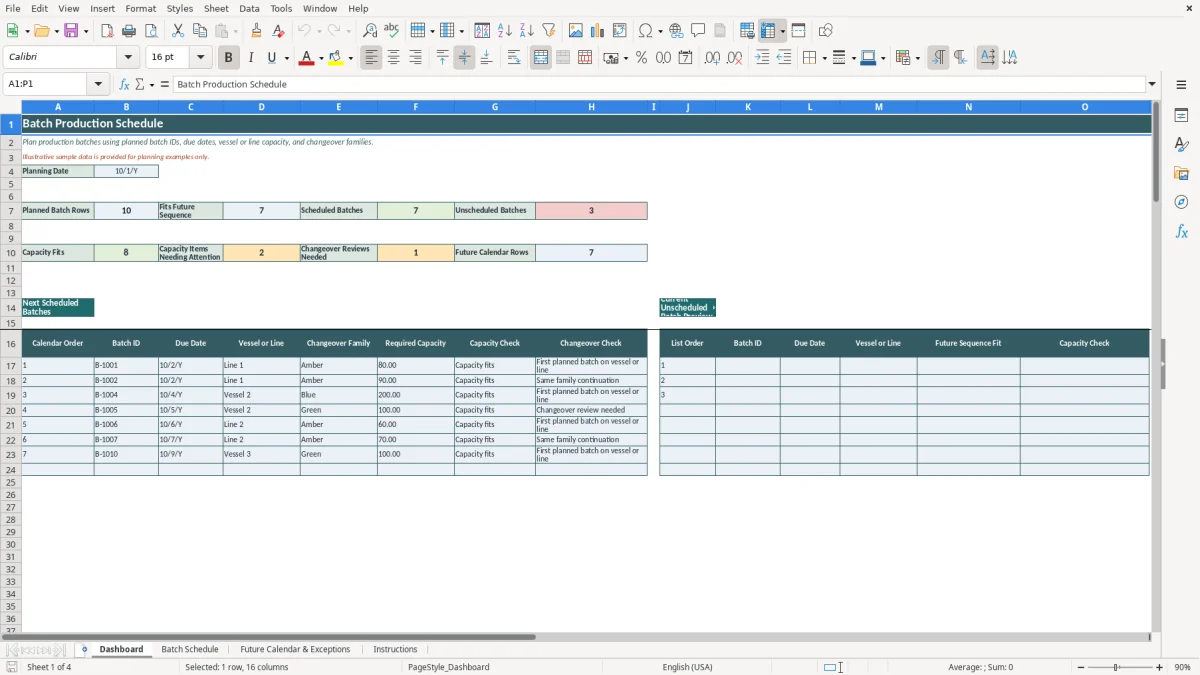
- Dashboard summary counts with a multi-day resource schedule list and a rescheduling exception list.
Operating sequence
How to use the workbook
1. Enter open work orders
On Work Orders, enter a unique Work Order ID, Due Date, and Routing Hours. Due dates display as m/d/Y. Routing Hours must be greater than zero.
2. Enter resource calendar availability
On Resource Schedule, enter Calendar Date, Resource, and Available Routing Hours. Use one calendar entry for each date and resource combination.
3. Enter planned schedule rows
In the schedule area, enter Planned Date, Resource, Work Order ID, and Planned Routing Hours. The planned date and resource should match an entered calendar row.
4. Review the calculated results
Check remaining routing hours, resource loading by date, calendar status, late-order risk, and Schedule Check. Review the Dashboard schedule and exception lists before production release.
Track work order planning against due dates
The Work Orders sheet compares each work order's entered Routing Hours with total planned routing hours from matching schedule rows. It also calculates Remaining Routing Hours and Latest Planned Date.
Late-Order Risk is a calculated planning result. It can display Unscheduled Hours, Overallocated, Late, or On Schedule from the entered work order and schedule information.
Check resource loading by date
The Resource Schedule sheet pairs a resource calendar with planned work. For each Calendar Date and Resource, it calculates Resource Loading by Date as scheduled routing hours and subtracts that result from Available Routing Hours.
Calendar Status shows the entered schedule against the entered availability. It can display Within Available Hours, Overloaded, or Duplicate Calendar Entry.
Review schedule exceptions before release
Schedule Check can identify Work Order Missing, Calendar Missing, Duplicate Calendar Entry, Work Order Overallocated, Resource Overloaded, or Planned Hours Needed. The Dashboard brings those schedule exceptions together with work order rescheduling exceptions.
Displayed checks depend on entered workbook values and formulas. They are not independent verification. This workbook does not automatically move work, release work orders, or replace an ERP, MRP, or MES.
Use notes
Questions about this workbook
Enter one Work Order ID, Due Date, and Routing Hours for each open work order. The sheet calculates Total Planned Routing Hours, Remaining Routing Hours, Latest Planned Date, Late-Order Risk, and any Rescheduling Exception.
For the resource calendar, enter Calendar Date, Resource, and Available Routing Hours. For planned work, enter Planned Date, Resource, Work Order ID, and Planned Routing Hours.
A work order can display Late when its planned routing hours match its entered routing hours and its Latest Planned Date is after its entered Due Date. A work order with fewer planned hours than entered routing hours displays Unscheduled Hours.
Calendar Missing means a planned schedule row does not have a matching Calendar Date and Resource entry in the resource calendar area. Add or correct the related calendar information, then review the Schedule Check again.
No. The workbook labels its sample data as illustrative. Replace sample work orders, resource calendar entries, and planned work rows with current planning information before using the displayed results.
Same verified file
Ready to work from your own copy?
Editorial profiles
Lena Hart Whitcomb
Production Workbook EditorLena shapes factory planning, materials, execution and improvement workflows into clear Excel workbooks. She focuses on usable inputs, transparent calculations, practical outputs and explicit limits.
Jonah Cray Bellmont
Spreadsheet QA EditorJonah reviews formula behavior, data validation, field labels, example data and workbook instructions so each download remains testable and within its documented scope.